Integrations

Multi-Form Builder Support: Connect Contact Form 7, WPForms, and Elementor Pro Forms to Brevo CRM. Use a single form builder or integrate multiple supported form plugins on the same WordPress website.
Automatic Brevo Sync: Automatically send form submissions to Brevo as Contacts, Companies, or Deals based on your feed configuration, eliminating repetitive manual data entry.
Secure Brevo Authentication: Connect your Brevo account using secure API key authentication and verify your credentials before sending form data to Brevo.
Feed-Based Integration Management: Create and manage multiple form-to-Brevo feeds. Select your form, choose the Brevo CRM module, configure field mapping, and activate or deactivate feeds as needed.
Advanced Field Mapping: Map WordPress form fields to Brevo CRM properties for Contacts, Companies, and Deals, ensuring submitted information is sent to the appropriate CRM fields.
Conditional Submission Rules: Control exactly which submissions are sent to Brevo using configurable conditions with AND / OR logic. Only submissions that meet your rules are synchronized.
Smart Duplicate Handling: Manage existing Brevo Contacts with flexible duplicate actions, including updating an existing contact, skipping the submission, or applying lists only.
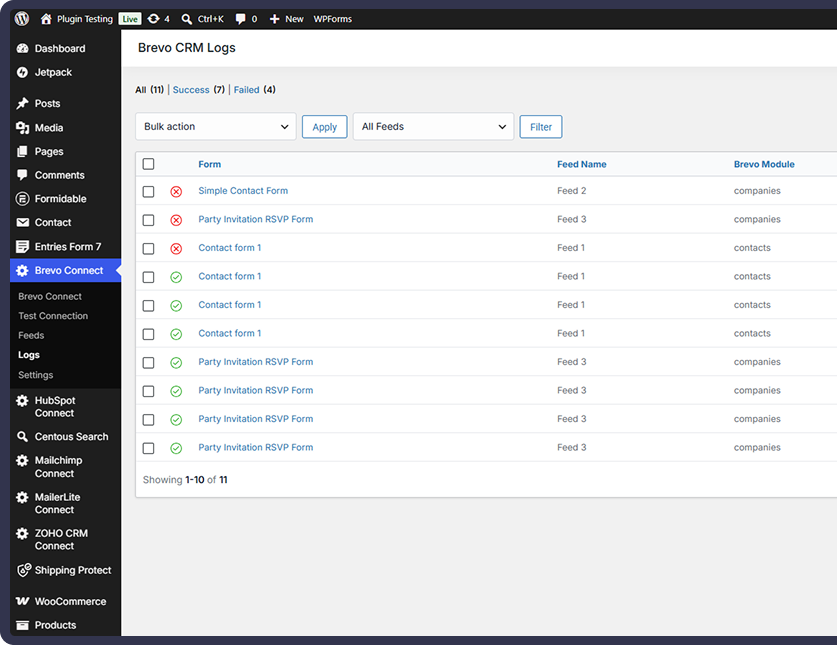
Our WordPress plugin does more than send form data to Brevo. Automate CRM record creation, control which submissions are synchronized, route contacts to the right lists, and manage failed syncs from one WordPress dashboard.
Multi-Form Integration
Centralized Feed Management
Advanced Field Mapping
Conditional Submission Rules
Smart Duplicate Handling
Contact List Routing
Detailed Integration Logs
Manual Resend & Automatic Retry
Automatically turn form submissions into Brevo CRM records
Reduce repetitive manual CRM data entry
Send only the submissions that match your conditions
Keep duplicate contacts under control
Automatically route contacts to the right Brevo lists
Monitor and troubleshoot synchronization issues easily
Recover failed submissions with resend and retry tools
Keep your CRM records updated with mapped form data
Connect Contact Form 7, WPForms, and Elementor Pro Forms with Brevo CRM. Automatically sync Contacts, Companies, and Deals, map fields, control submissions, and monitor your integrations from one place.
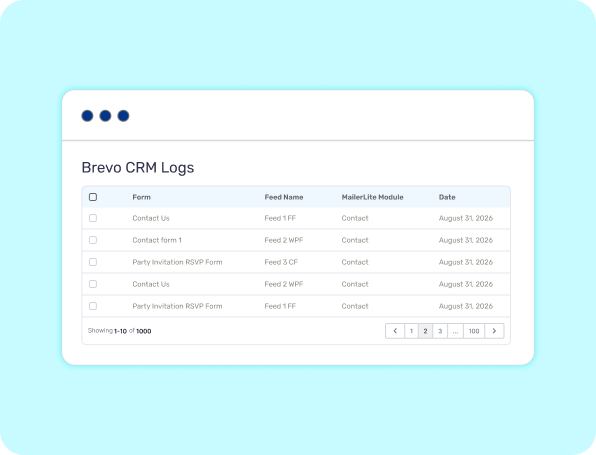
Send supported form submissions to Brevo based on your configured feeds. Create or update Contacts, Companies, or Deals automatically, keeping your CRM data synchronized without repetitive manual entry.
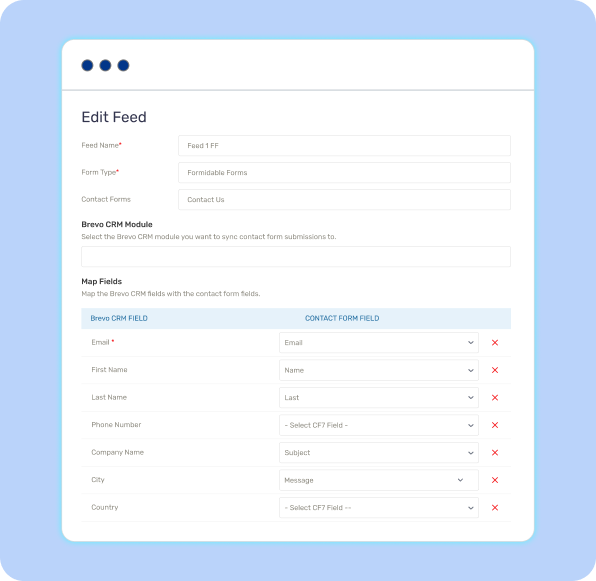
Connect your WordPress form fields to Brevo Contacts, Companies, or Deals using flexible field mapping. Choose the CRM module and map the information you need so your submitted data reaches the appropriate Brevo properties.
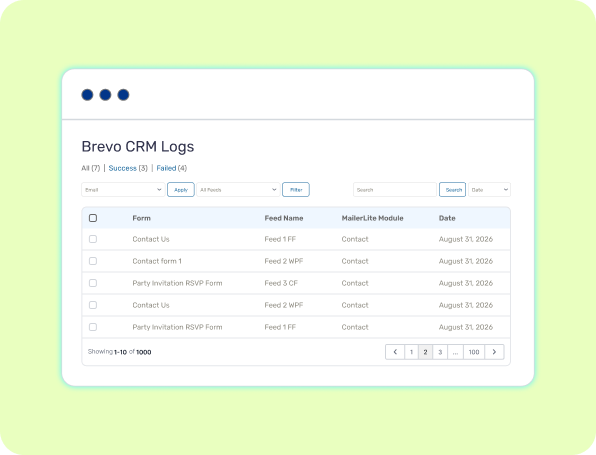
Use the integration logs to review successful and failed submissions, inspect API requests and responses, and identify synchronization problems quickly. Detailed logs make troubleshooting and monitoring your Brevo integration easier.
Choose the Right Plan for Your Business
Feature-by-Feature Plan Comparison
| Features | FREE Get Started | |
|---|---|---|
| Contact Form 7 Integration | ||
| WPForms Integration | ||
| Elementor Pro Forms Integration | ||
| Brevo Contacts | ||
| Brevo Companies | ||
| Brevo Deals | ||
| Field Mapping | ||
| Multiple Feed Management | ||
| Conditional Submission Rules | ||
| AND / OR Conditions | ||
| Contact List Routing | ||
| Smart Duplicate Handling | ||
| Manual Resend | ||
| Automatic Retry Queue |
It supports Contact Form 7, WPForms, Elementor Forms, and Formidable Forms. You can use one or multiple supported form builders on the same WordPress website.
You can send form submissions to Brevo Contacts, Companies, or Deals. You can also map your form fields to the corresponding Brevo properties.
Connect your Brevo account using a Brevo API key from the plugin's Brevo Connect section. After connecting, you can test the connection and create feeds for your forms.
Yes. The plugin provides field mapping so you can connect fields from your WordPress forms with the appropriate Brevo properties, including contact, company, and deal fields.
Yes. You can create multiple feeds for the same form and configure each feed differently. For example, different feeds can use different Brevo modules, field mappings, conditions, or list-routing settings.
Yes. Pro includes conditional rules that allow you to send submissions only when specific form values meet your configured conditions. You can use AND/OR logic for your rules.
For supported Contact feeds, you can configure how existing contacts are handled, including updating the contact, skipping the submission, or applying lists only.
Failed submissions can be recorded in the plugin's logs. Pro also includes an automatic retry queue that can retry failed synchronization attempts based on your configured retry settings.
Yes. Pro provides a manual resend option from the Logs screen, allowing you to retry individual submissions when needed.